A new client checks in at the kiosk, then walks off to the waiting room. Before, the kiosk stayed on the intake form with their name on it, and the next guest could tap into it. Now the kiosk asks once, counts down 15 seconds, and goes back to the check-in screen if nobody taps.
Stores taking cards on Fiserv CardPointe now print one receipt on the reader after every card payment, unless you turn it off. And the iPad front desk is getting two catch-ups: selling a package on its own by card, and printing a receipt after a Fiserv payment.
New clients go back to the check-in screen
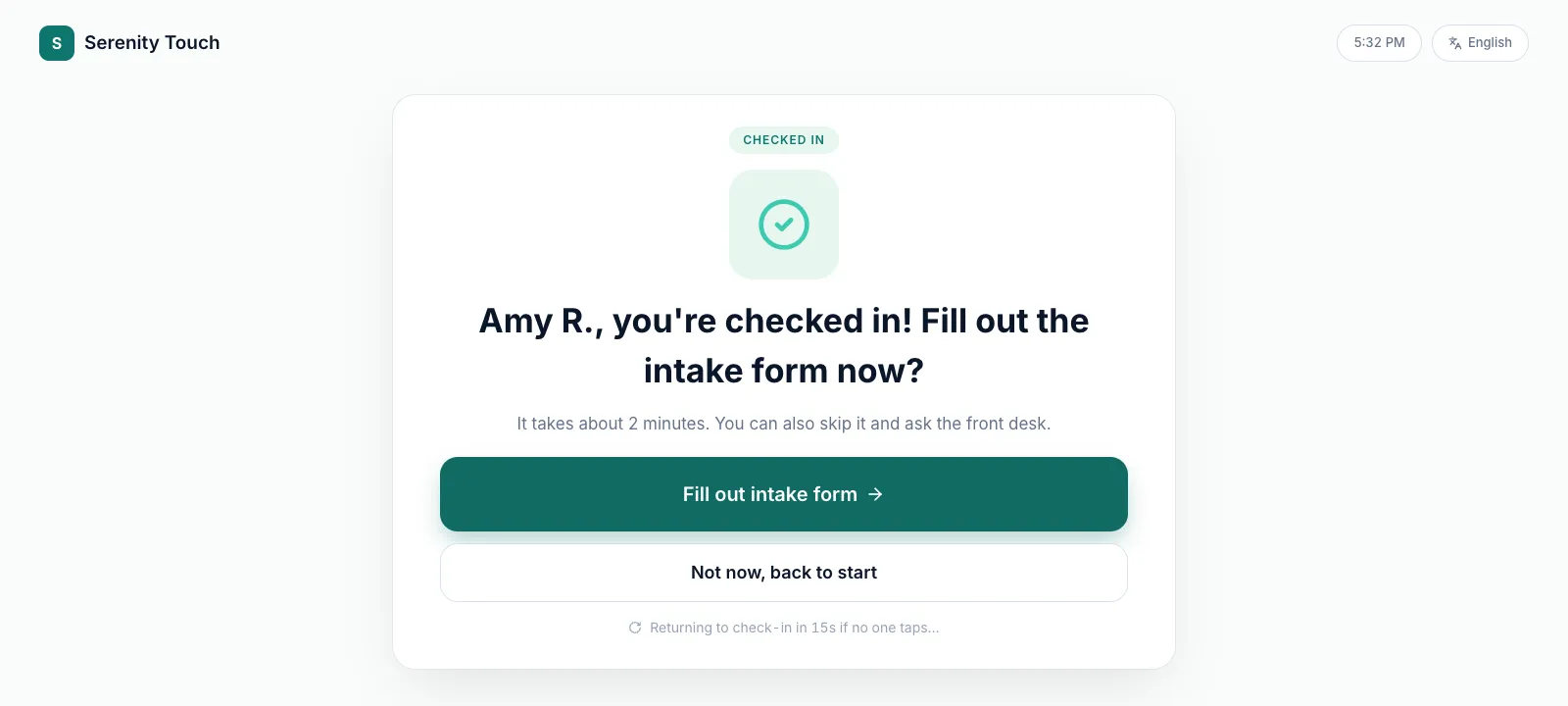
The kiosk now handles a first visit the same careful way it handles a returning client. After a new client checks in, they see a short screen instead of the full intake form.
What the client sees
- A CHECKED IN badge and their name, shortened (for example "Amy R.").
- Two buttons: Fill out intake form and Not now, back to start.
- A countdown under the buttons: Returning to check-in in 15s if no one taps…
Fill out intake form opens the same form as before. Not now, back to start, or no tap at all, sends the kiosk back to the check-in screen. Nothing is saved as a form when the client skips; the front desk can send the form later by link.
How to set it up
There is nothing to turn on. Every store that uses self check-in gets it. To see it on your kiosk, go to About This Store → Self Check-in → Open Kiosk and check in a test client who has no form on file yet.
Getting the most out of it
- Ask new clients to tap Fill out intake form while they wait. Two minutes at the kiosk saves a clipboard at the desk.
- If a client skipped, send them the form link before the visit starts.
- Returning clients see the screen they already know; this change is only for first visits.
Good to know: the 10-minute idle reset on the intake form itself is unchanged. The new screen simply comes first.
Receipts print by default on Fiserv readers
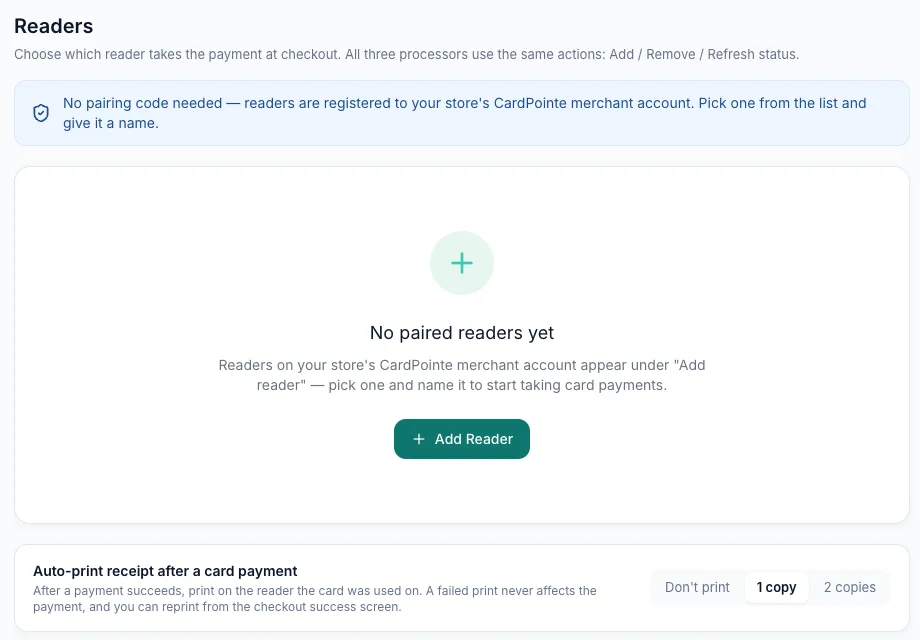
The setting Auto-print receipt after a card payment now starts at 1 copy. Before, it started at Don't print, so most stores never saw a paper receipt unless someone tapped print. Every Fiserv CardPointe store is now on 1 copy, including stores that had the setting at Don't print.
How to check or change it
- Go to System Settings → Store & Operations → Payment Settings.
- Open Readers.
- Under Auto-print receipt after a card payment, pick Don't print, 1 copy or 2 copies. It saves right away.
- Owner and Admin can change this. Everyone else sees Only the owner or an admin can change this.
What the front desk sees
After a card payment, the receipt prints on the reader the card was used on. The checkout success screen shows Printing receipt automatically… and then Printed 1 copy automatically. A failed print never affects the payment; you can reprint from the same screen.
Getting the most out of it
- Choose 2 copies if you keep a signed copy for your records.
- Choose Don't print if your guests prefer a text or email receipt. If you had turned printing off before, turn it off again here.
iPad front desk: in the next app update
These two changes are ready and come to the iPad front desk with the next app update. Until then, the web app does both.
Sell a package by card
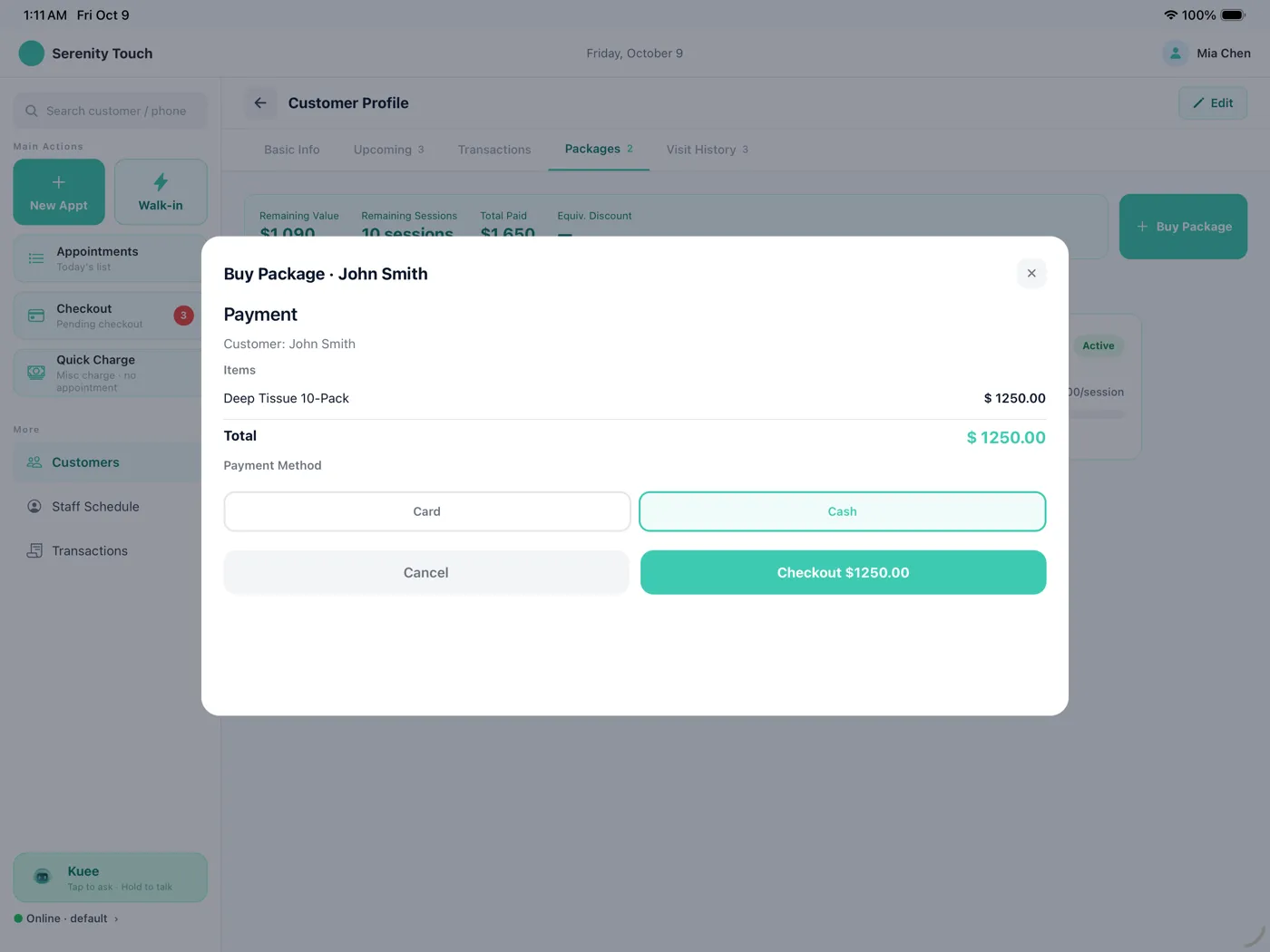
Before, buying a package on its own at the iPad could only be paid in cash. Now it uses the same payment panel as checkout, so a client can pay by card on your reader or by manual card entry.
- Open Customers and pick the client.
- Open the Packages tab and tap Buy Package.
- Choose the package, then tap Charge with the amount.
- Under Payment Method, choose Card or Cash and complete the payment.
It works with your store's card processor, Fiserv CardPointe or Stripe. The surcharge follows the same rules as checkout. Adding a package to an appointment checkout works as it did before.
Print a receipt after a Fiserv payment
After a Fiserv CardPointe payment, the iPad success screen gets a receipt row. A card payment on the reader prints by itself, using the store setting above. A manual or saved-card payment gets a Print receipt button. If printing fails, the payment is still complete, and you can try again. With more than one reader, you can choose which one prints.
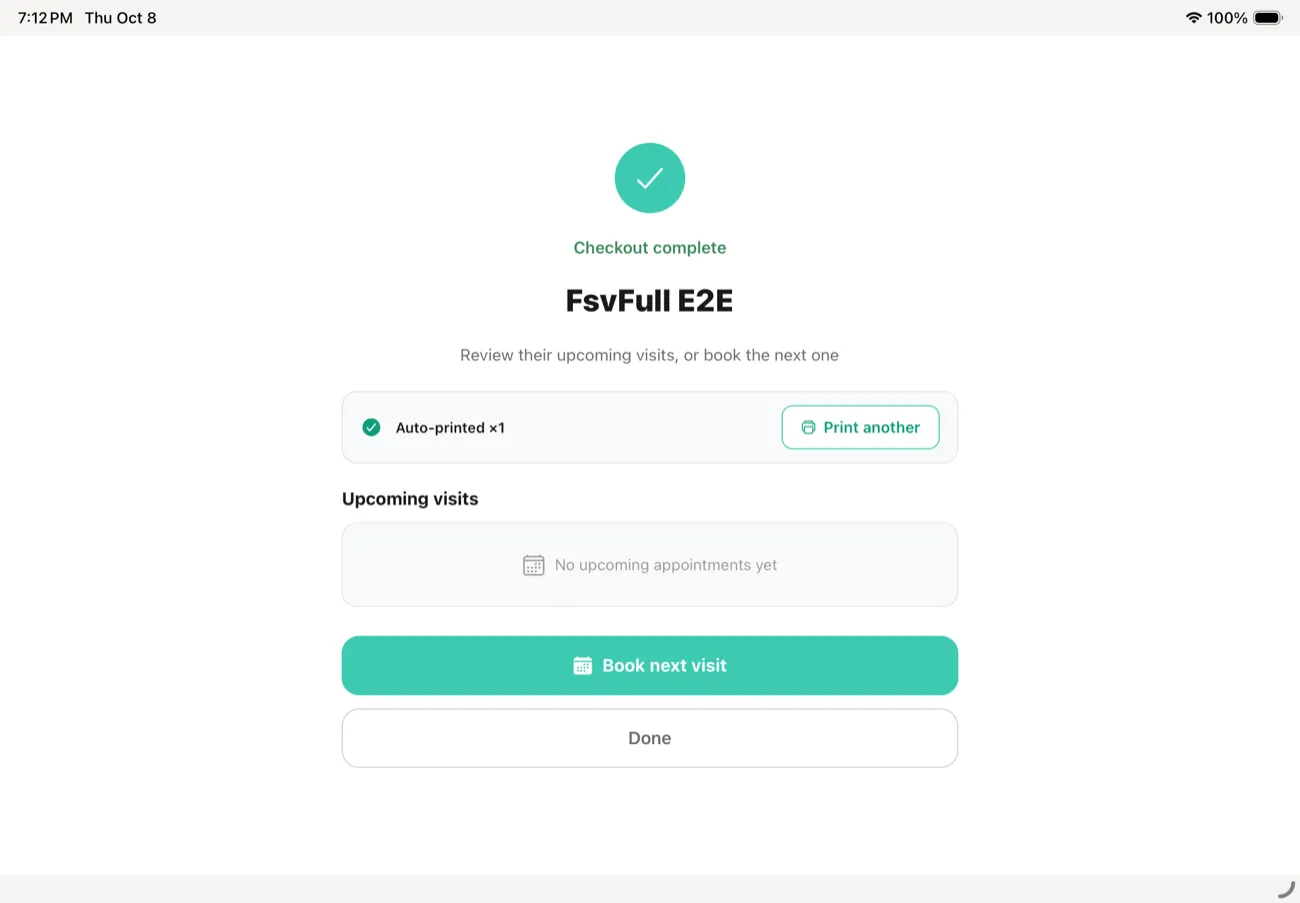
You can also open a past Fiserv payment in Transactions and tap Print Receipt.
Smaller improvements
- Receipts say tips are not surcharged. On Fiserv CardPointe, when a card payment on the reader includes a credit-card surcharge, the receipt the guest gets by text or email now ends with "Tips will not be surcharged." Manual card payments already had this line.
Fixes you may notice
- Tips on the reader no longer cut the payment short. When a guest picked a tip on the Fiserv reader and took a while to tap, checkout could stop after two minutes and say the result was unknown, and the guest was not charged. The reader now has up to ten minutes.
- Using the last session of a package no longer fails checkout. On Fiserv CardPointe, a visit that used a client's last package session could show an error after the card went through, and the visit stayed open. Checkout now completes and the package shows as used up.
Questions about this update
Tell us what works for your store and what does not: contact us and we will walk you through any of these changes on your own store.