Kuee 4.31 starts where your front desk spends the day: the Appointment page. The toolbar is tidier, a strip on the right tells you what needs attention, and the Operation view now shows who is in service, who is next and which rooms are free on one screen. Creating and editing a booking use the same form, and the therapist picker tells you who is actually free at that time.
The rest of the release is about money you are owed and time you could still sell: auto checkout no longer counts a visit as revenue until someone confirms the client paid, tips can be added after checkout, and two new tools help you fill open time with one text.
A redesigned Appointment page
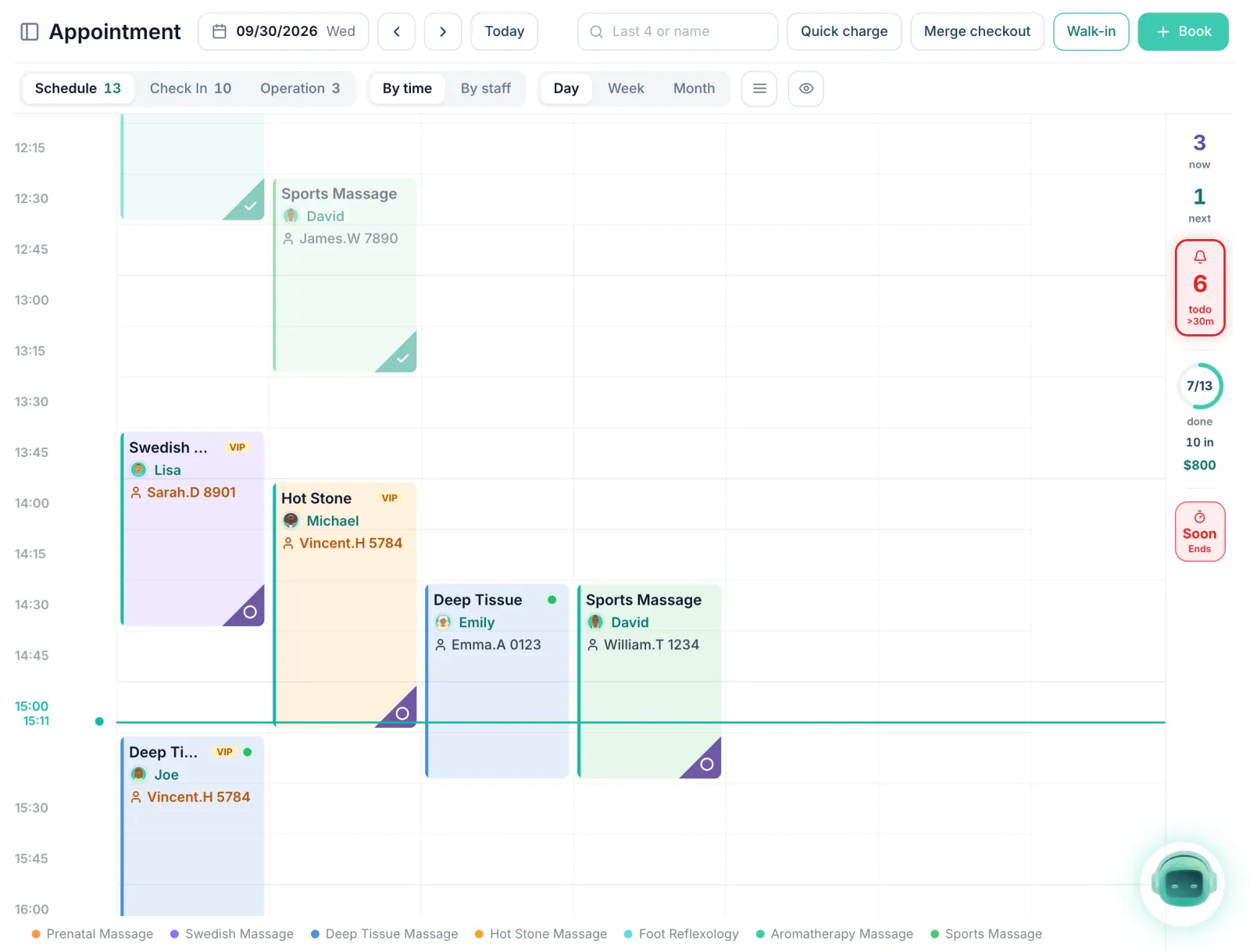
On a busy afternoon the front desk needs to see, without clicking around, who is running over, who arrives next and which room is free. The Appointment page now answers that at a glance. Nothing to turn on: it is there for everyone who uses Appointment.
The calendar and toolbar
- The top row shows the date with the weekday, and Quick charge, Merge checkout, Walk-in and Book sit side by side.
- The second row holds the views (Schedule, Check In, Operation, By time / By staff, Day / Week / Month) and two small buttons for view options.
- A narrow strip on the right counts who is in service now, who is next, open to-dos, how much of the day is done, and visits ending soon. Click it to open the Operation view.
The Operation view
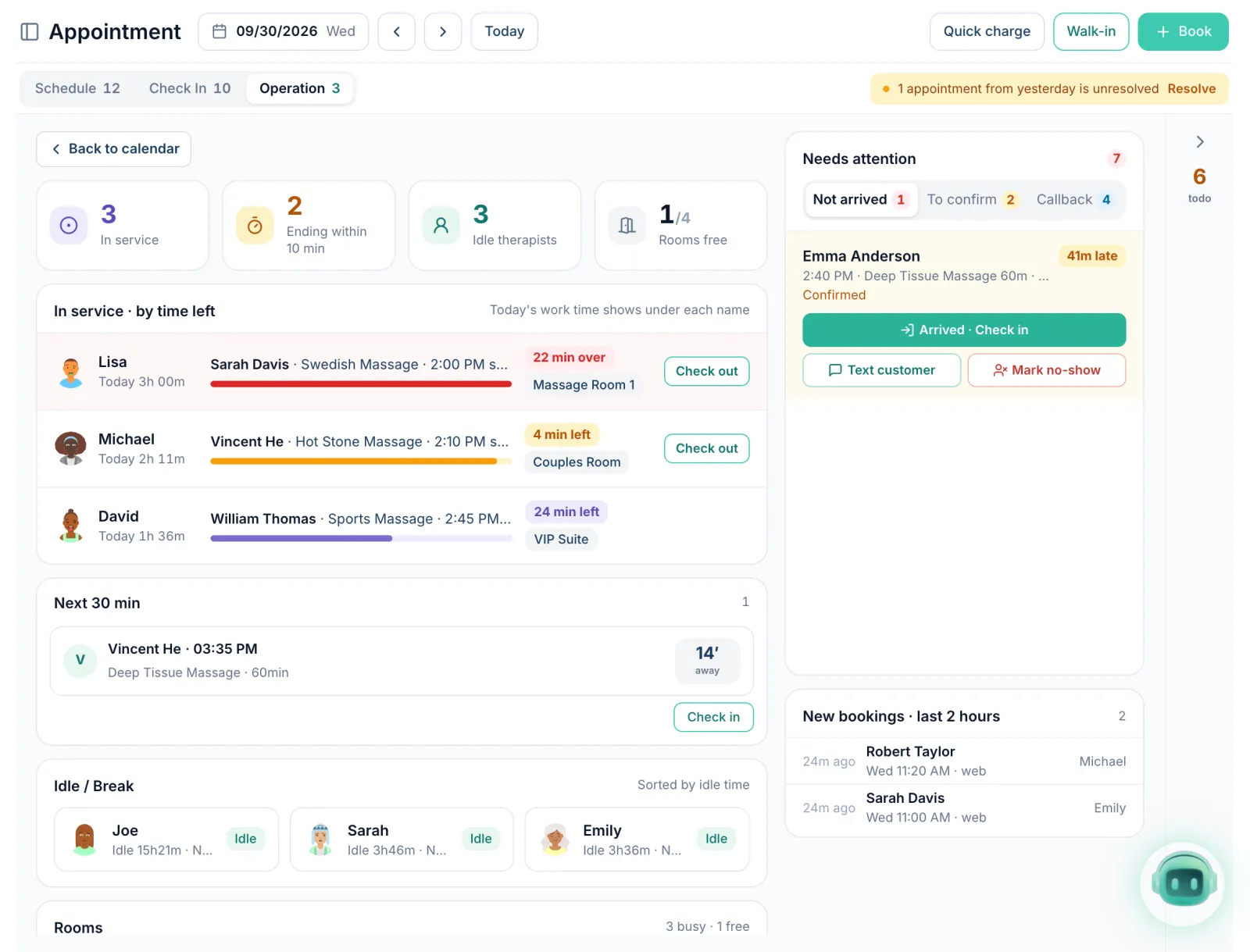
The Operation view is built for the busiest hour of the day:
- Four counts at the top: In service, Ending within 10 min, Idle therapists and Rooms free.
- In service · by time left lists every visit, most urgent first. Visits that are over time or about to end get a Check out button.
- Next 30 min lists arriving clients with a Check in button; Idle / Break and Rooms show who and what is free.
- Needs attention has three tabs: Not arrived, To confirm and Callback. Resolve on a callback asks How did this callback go? (Booked, No answer or Not needed), so the list stays current.
- Go back with Back to calendar, the Esc key, or the arrow at the top of the right strip.
Booking and editing
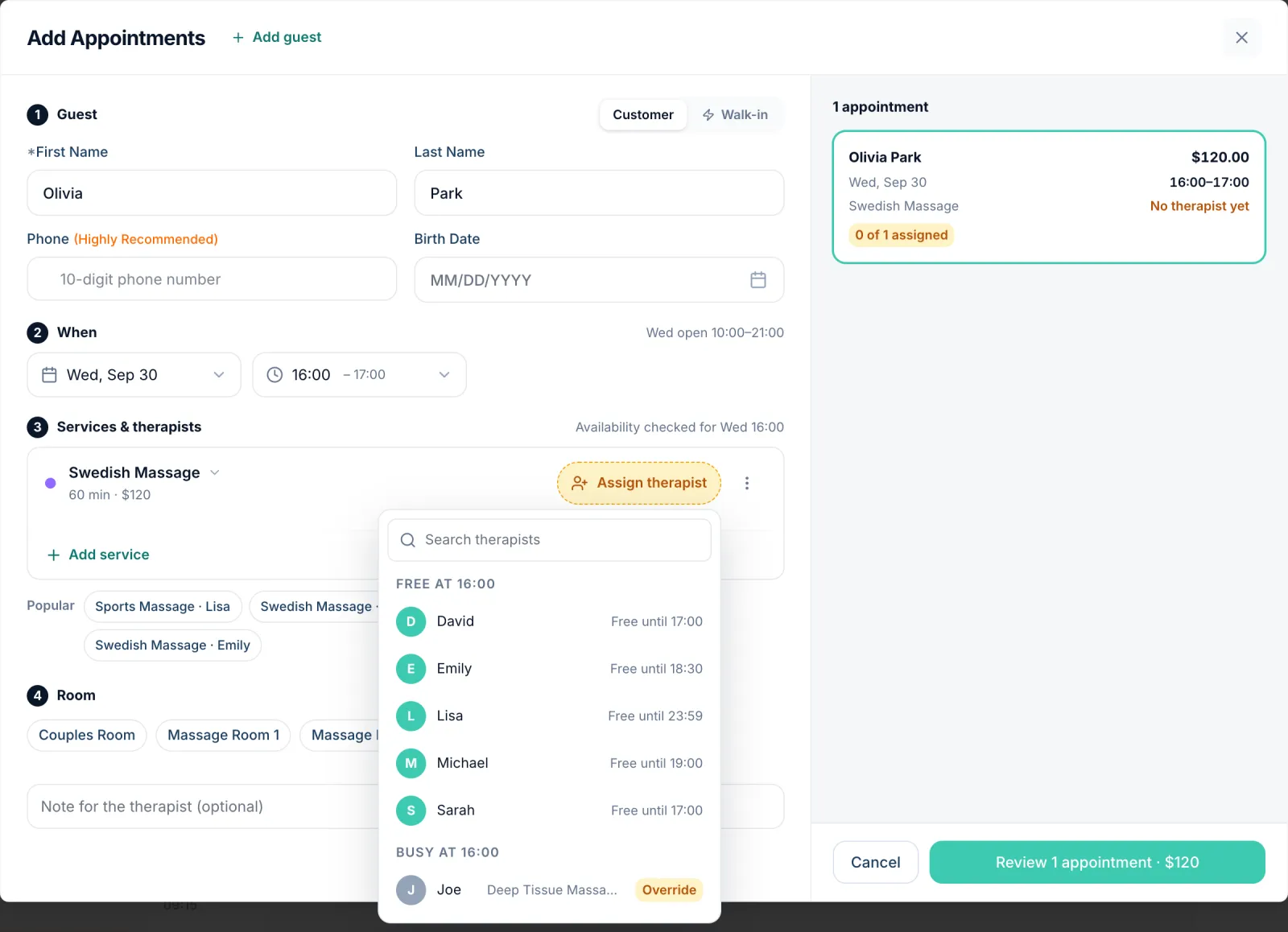
Book opens a new Add Appointments form: fill in the guest, time, services and room on the left, check the summary on the right, then review before you create. When you add a service without a therapist, the therapist list opens by itself, grouped by what is true at that time: free, busy (you can still Override), not working, or doesn't offer this service. Editing a booking from its details uses the same form, so there is one way to do it.
At checkout, each service now has its own row with its therapist, so you can assign or change the therapist right there. Changing a service or therapist keeps any tip already recorded. The whole page is available in English, Chinese, Korean and Vietnamese.
Auto checkout now waits for you to confirm the money
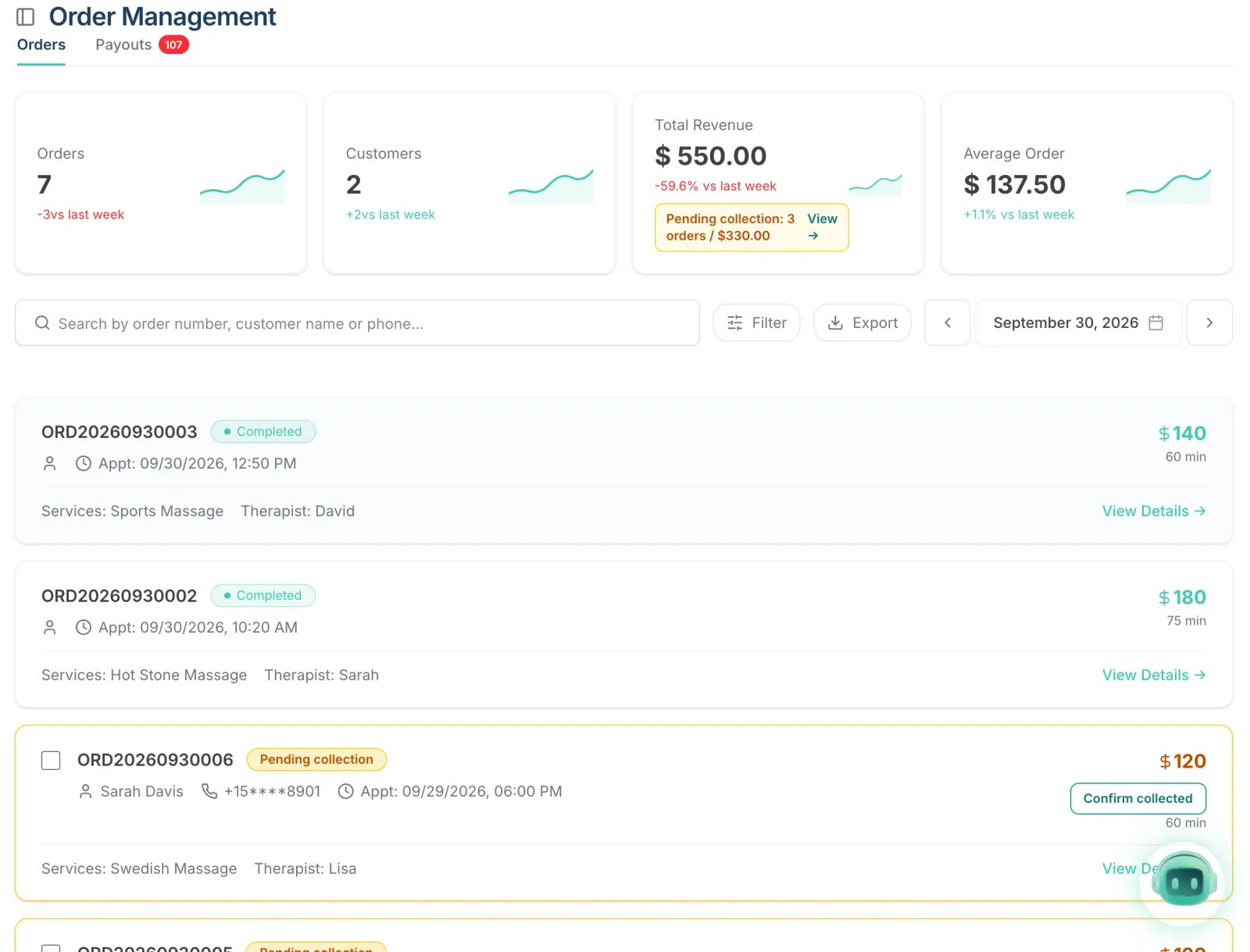
Auto checkout closes checked-in visits that nobody checked out, at list price. Kuee cannot know whether the client actually paid, so from now on such a visit is marked Pending collection and left out of revenue until someone confirms it.
- Revenue on the home page, reports, the daily report and the AI weekly report leaves pending visits out and shows them on their own line, for example "Pending collection: 3 orders / $330.00".
- Commission is still earned on these visits. Staff Performance shows the pending part in an Of which pending column.
- Visits that auto checkout closed before this update count as collected; past reports do not change.
How to confirm a payment
- Open Order Management. Auto-checked-out orders carry a Pending collection badge; the Collection filter can show only those.
- Click Confirm collected on an order, or tick several and click Confirm collected (batch).
- Answer How was this collected?: Cash, Other POS card or On account (insurance, prepaid, membership; asks for a reason).
The appointment's details show the same banner, Auto checkout · Pending collection, with a Confirm collected button.
Close visits sooner when the therapist ends early
Go to System Settings → Store & Operations → Payment Settings → Advanced Settings and find Auto checkout:
- Auto checkout after service ends is the setting you may already use: it goes by the scheduled end time.
- Auto checkout after therapist ends is new: once every therapist on the visit has tapped "End", the wait starts from the last end time.
- The Wait time (5, 10 or 15 minutes, default 10) applies to both.
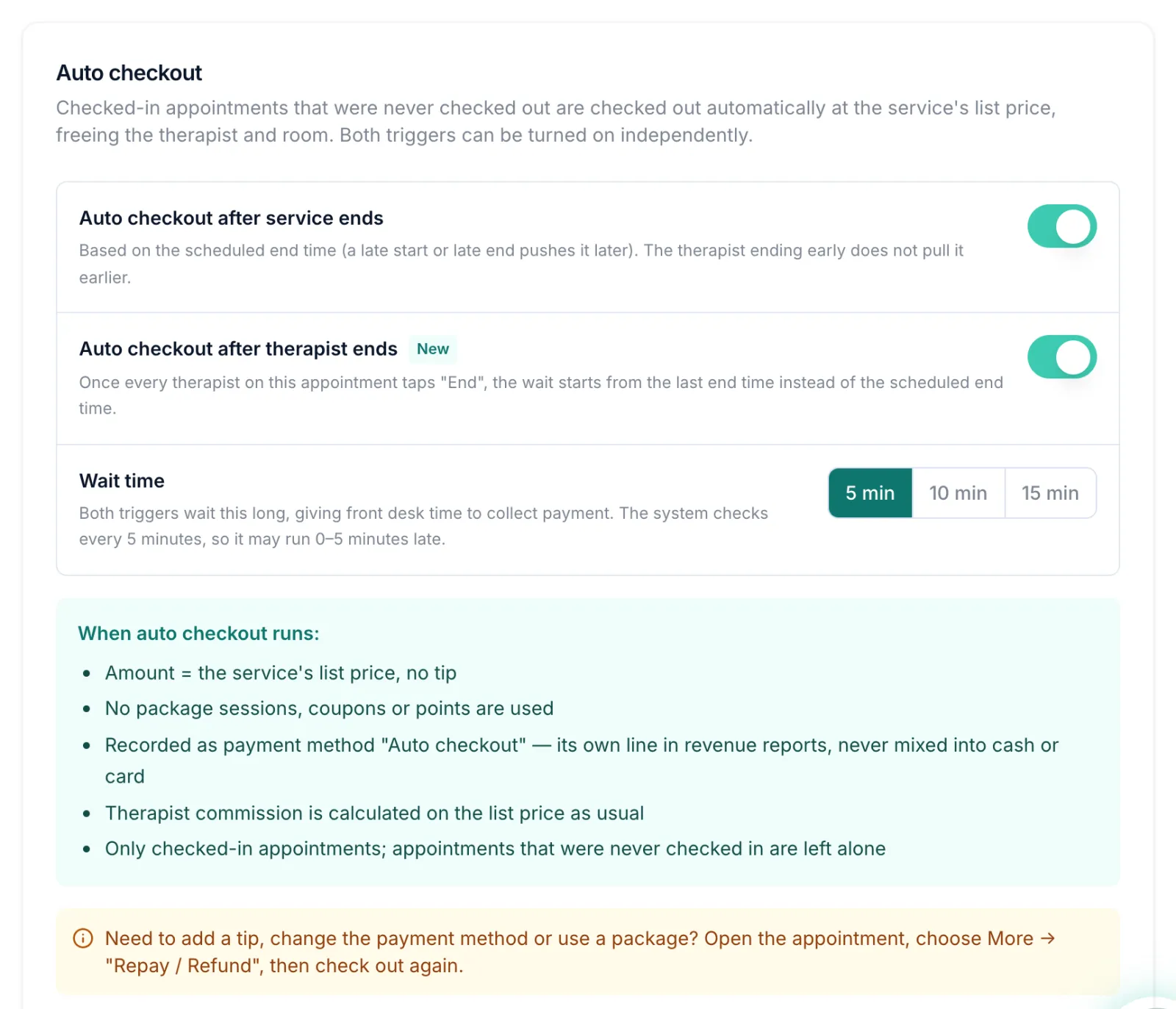
Both switches are off by default and only owners and admins can change them; with both on, whichever comes first wins. Kuee checks every 5 minutes, so a visit may close up to 5 minutes after the wait.
Good to know: confirming a payment does not charge a card. To take a card payment instead, use Repay / Refund on the appointment and check it out again.
Add a tip after checkout
A client pays, leaves, and comes back to hand the therapist a $20 bill. Until now the front desk had to undo the checkout to record it. Now you add it to the existing checkout.
- Open the checked-out appointment, click More, then Add tip. On a visit that auto checkout closed, the tip button is in the banner.
- Enter the amount or pick a quick amount (from your store's tip settings).
- Under Split with therapists, Kuee splits the tip by service price. Change any share if you like; Manually edited · Restore split puts the automatic split back.
- Click the confirm button, for example Confirm $25.00 tip.
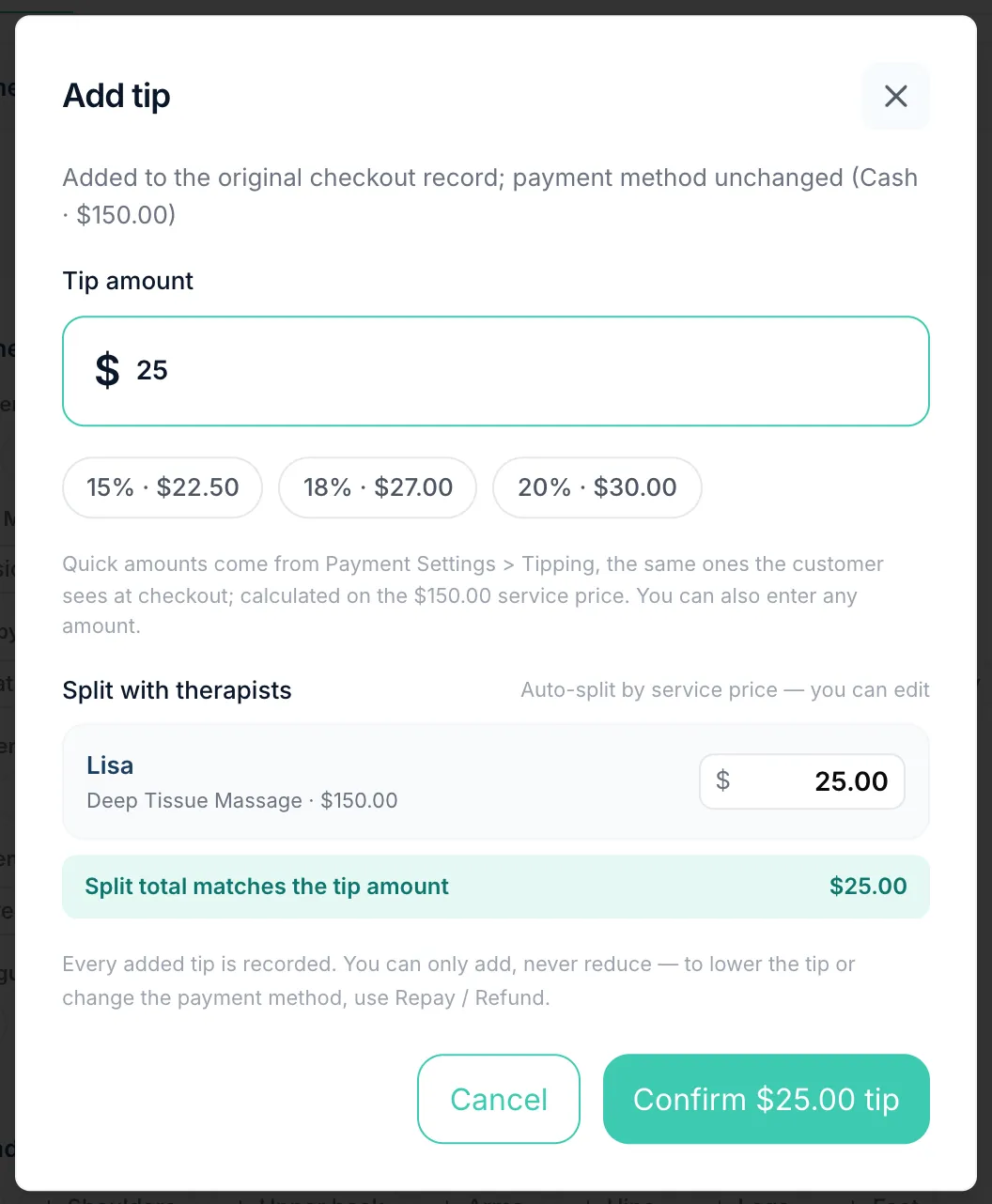
The tip joins the original checkout with the same payment method, and no card is charged. It appears on the appointment's Billing tab with the time and who added it, and in the therapists' tips.
Good to know: you can add a tip, not reduce one; use Repay / Refund for that. Tips do not earn commission. Orders that paid several appointments together cannot take an added tip yet.
Fill today's gaps from the Kuee Smart Assistant
An empty 90 minutes at 2 PM is money you can still earn. The Kuee Smart Assistant now spots today's gaps for each therapist and picks the clients most likely to take them.
- Open the Kuee Smart Assistant.
- Under Today's actions, a card such as "Today 2:00–3:30 PM · Lisa open for 1 h 30 min" says how many good matches it found. Gaps of 30 minutes or more get a card, up to three a day.
- Each client comes with a reason, such as "Usually books Lisa" or "42 days since last visit". Untick anyone you do not want to text.
- Check the SMS preview (what each customer receives), then click Send (for example Send 8).
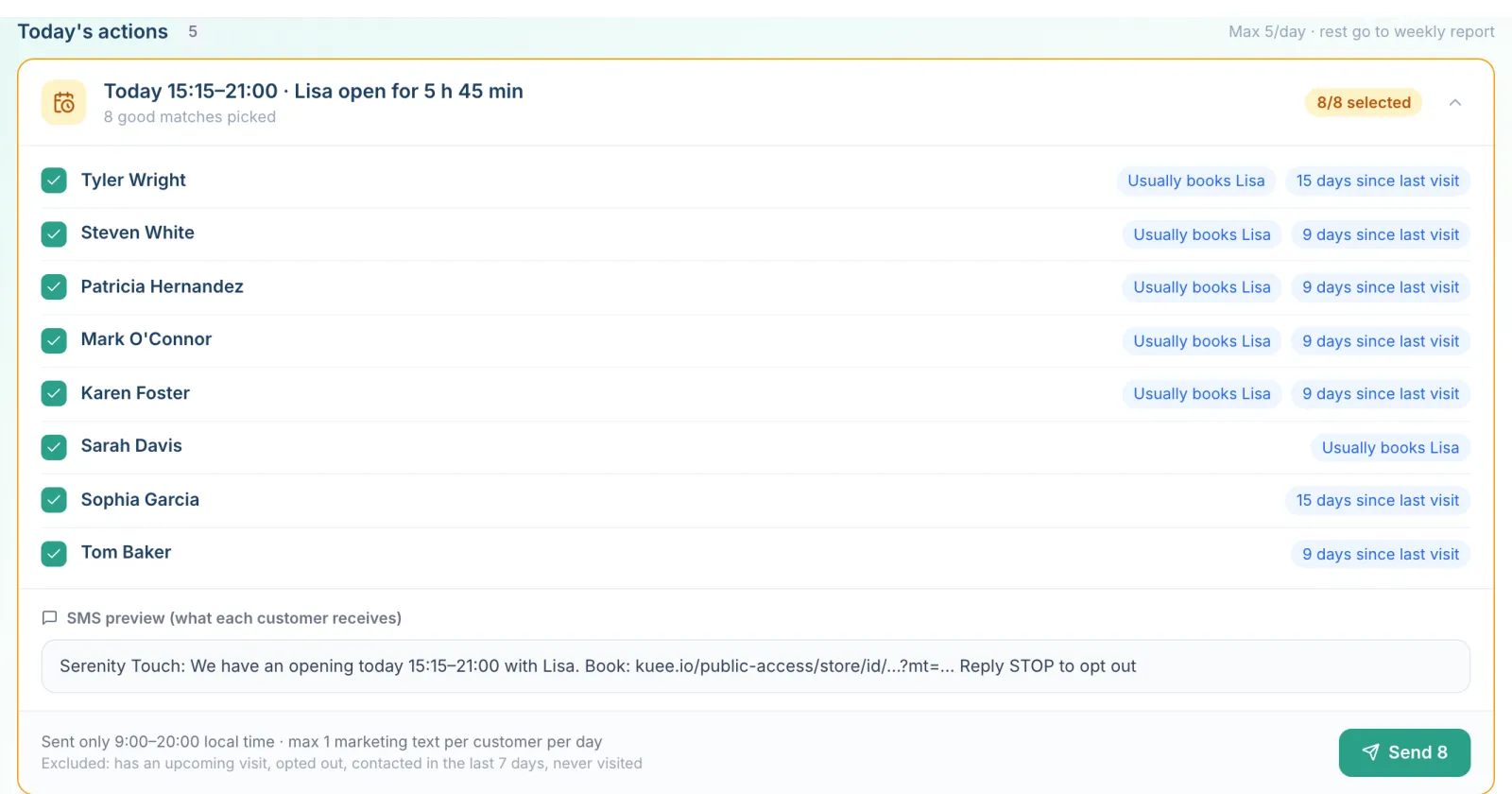
The gap is found the same way your online booking page finds open times. Clients are left out if they already have an upcoming visit, opted out of texts, got a marketing text in the last 7 days, or have never visited. These are marketing texts: they go out between 9 AM and 8 PM store time, at most one per client per day, and the same gap is never sent to the same client twice. Sending needs a verified email on your Kuee login. Phone and SMS usage may be billed separately.
Fill a cancelled slot with one text
When a client cancels a few hours ahead, the slot is hard to sell. With Fill cancelled slots on, Kuee alerts the front desk and owner when a booking in the next 48 hours is cancelled or marked no-show, and suggests three to five clients likely to come.
How to set it up
Go to System Settings → Communications → Notification Settings and turn on Fill cancelled slots (off by default; owners and admins). It sends from your store's own texting number, so it can only be turned on once that number is approved for texting.
How to use it
- Click the alert in the notification bell to open An opening you can fill.
- Untick anyone you do not want to invite, edit the text if you like, and click Send to 5 customers (the number follows your selection), or Dismiss.
- Clients who reply "1" appear in Messages, where you confirm the booking. First come, first served.
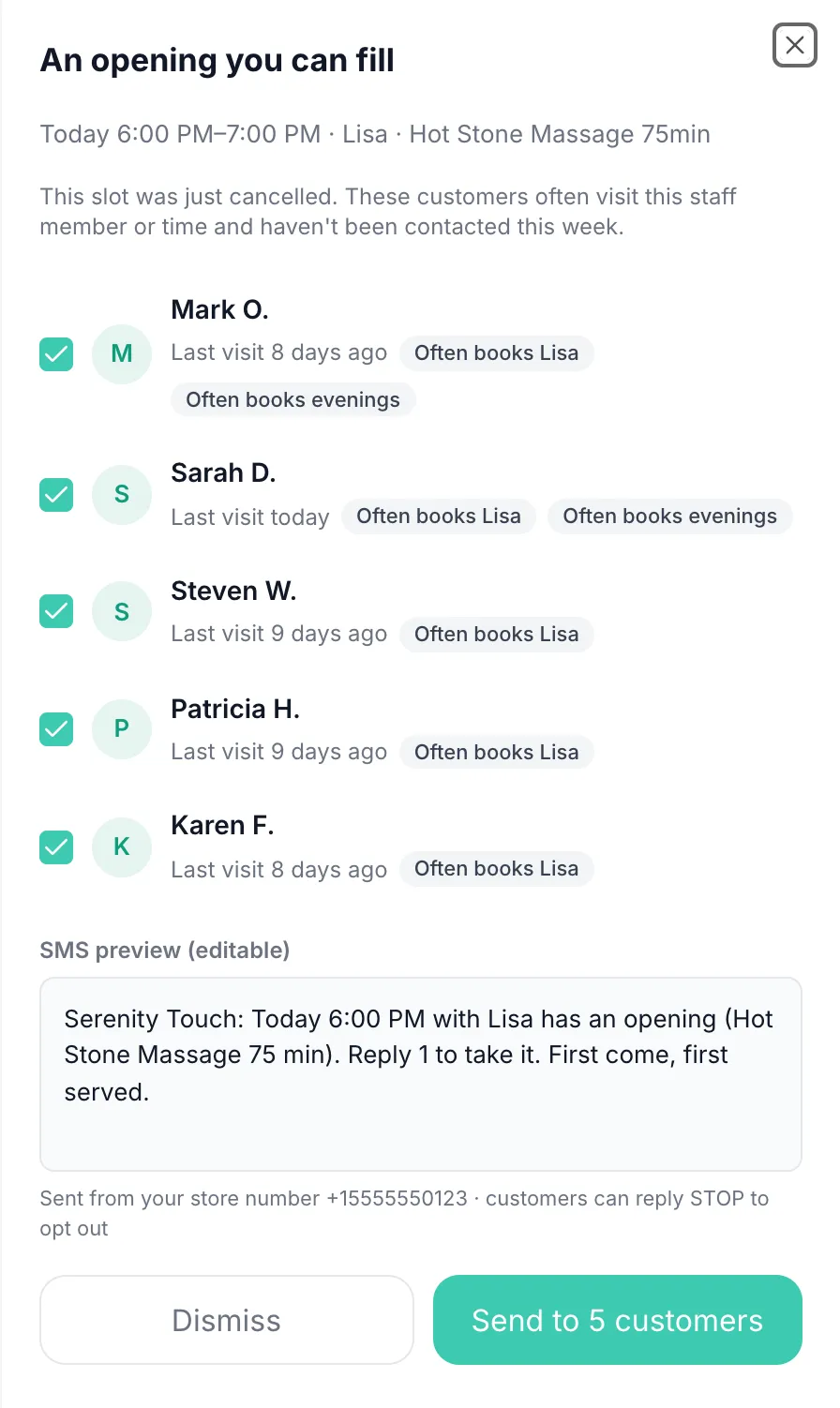
Good to know: invites go out between 9 AM and 8 PM store time. If someone books the slot first, nothing is sent. Clients who replied STOP never get an invite. The iPad does not show these alerts yet.
Smaller improvements
- Rebook link in text receipts. Turn on Include a rebook link in receipts in Notification Settings (off by default; Text a receipt after checkout must be on). The link opens your booking page with the client's last service picked, and the same therapist once they choose a date.
- Add your therapists while you set up. New stores get an Add Therapists step in the setup wizard (Set myself as a therapist, or add therapists by name and phone; Skip for Now is still there). The setup checklist starts with Must complete before taking bookings.
- One marketing text a day, everywhere. Marketing texts sent through the AI assistant, and gift cards given as a promotion, now count toward the same one-a-day limit as your other campaigns.
- Late arrival texts in your store's language. The prefilled "are you on your way?" text now follows the language your store sends notifications in, not the language of the staff member's screen.
Fixes you may notice
- Signing out on the web signed you out on every device, including the front desk iPad. It now signs out only the browser you are using.
- Review requests and receipts for new stores were sent in Chinese. New stores now send them in English by default.
- Changing a therapist at checkout sometimes did not stick. It now saves as soon as you pick.
- The online booking page on phones could be wider than the screen. It now fits.
- The Vietnamese toolbar on the Appointment page no longer overlaps.
Questions about this update
Tell us what works for your store and what does not: contact us and we will walk you through any of these changes on your own store.